Table of Contents
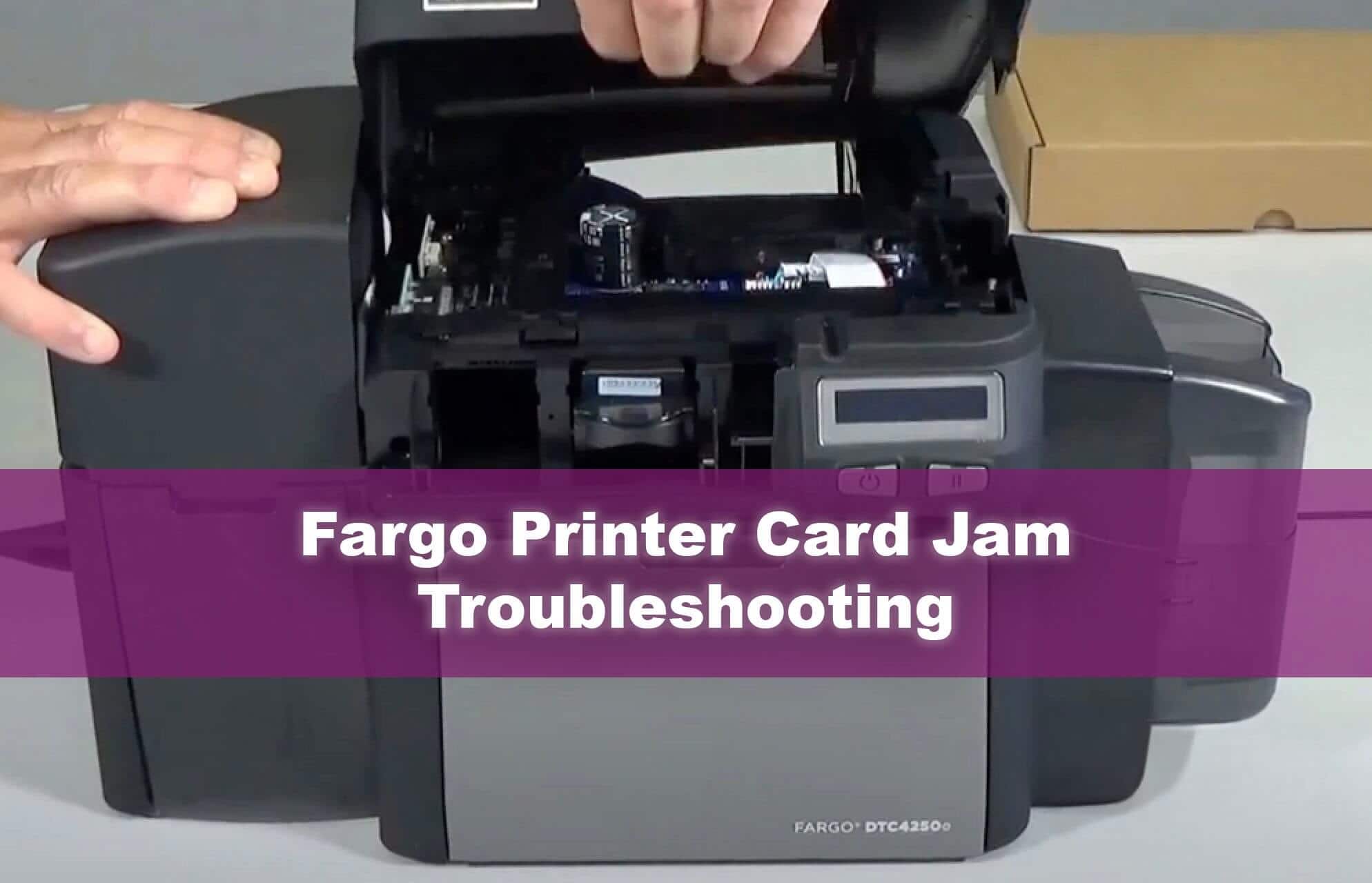
Fargo card jam errors can be alarming, especially when a card is stuck halfway through printing. In this guide we explain what Fargo DTC card jam errors mean, where cards usually jam in the Fargo DTC printers, and how to clear and prevent these errors.
What are Fargo DTC card jam errors 68, 110, and 112?
When your printer shows Fargo DTC card jam error 68, 110, or 112, it is telling you that a card has not reached the expected position in the print path or flipper. These codes generally indicate that a card is stuck, misaligned, or not detected where the sensor expects it.
In simple terms, “a card is jammed or misaligned inside the printer.”
Where do Fargo DTC card jam errors 68, 110, and 112 usually occur?
Common jam points include:
Print station:
The card stops under the printhead due to a feed problem or ribbon issue.
Flipper (on dual-sided models):
The card gets stuck while being flipped to print the second side.
The flipper table may not be fully returning to its home position.
Input or output area:
Cards bind as they enter or exit the print path.
Card edges may catch on guides if cards are warped.
How to clear Fargo DTC card jam errors 68, 110, and 112
Follow these steps to safely clear the error:
Power off the printer:
Turn off the printer to protect the printhead and mechanism.
Open all access doors:
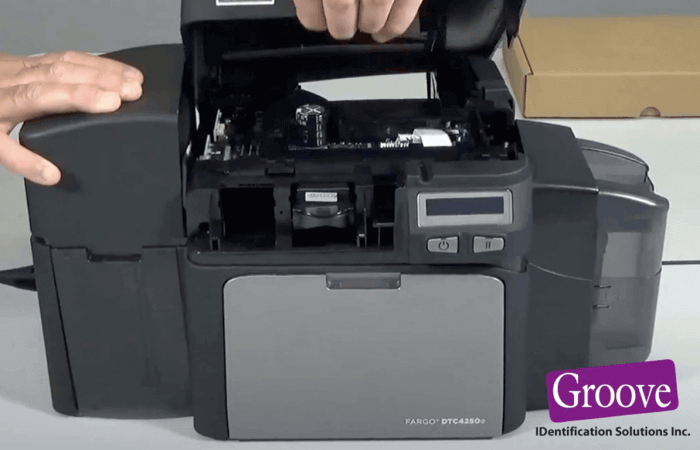
Open the ribbon cover, card input area, and any side or rear covers recommended by the user guide.
Gently remove the jammed card:
Pull the card straight in the direction of the normal card path—do not yank sideways.
If the card is stuck in the flipper, gently rotate the flipper as allowed by the guide and slide the card out.
Check for broken pieces:
Make sure no pieces of card or debris are left behind.
Inspect the path for ribbon fragments or dust.
Close covers and restart:
Close all covers securely.
Turn the printer back on and wait for it to initialize.
Print a test card to confirm the Fargo DTC card jam error has cleared.
How to prevent Errors 68, 110, and 112
To reduce future jamming:
Use flat, high-quality cards without warping or rough edges.
Avoid overloading the input hopper.
Clean the printer regularly with Fargo cleaning kits to remove dust and card residue.
Make sure the card thickness and size match Fargo’s specifications.
For dual-sided models, ensure the flipper has no obstructions and moves freely.
When to get help with Card Jams
If Fargo DTC card jam error 68 110 112 keeps occurring in the same area, there may be wear or damage to rollers, gears, or the flipper mechanism.
Groove Identification Solutions can help you:
Identify whether the problem is card quality, contamination, or worn parts
Supply cleaning kits, replacement parts, or new printers if needed
Support you with remote troubleshooting to reduce downtime
For assistance with and Fargo Printer Error, or just have questions about your printer, call 1-888-940-3645 or contact us online.